
 844 744 6348
How to Add TSA PreCheck to American Airlines: Step-by-Step Guide
September 30, 2026
Getting approved for TSA PreCheck is a huge relief for any traveler, but approval is only the first step. To breeze through expedited airport screening lanes on your upcoming journey, you must know how to add TSA PreCheck to American Airlines reservations properly.
Many passengers assume that once the Transportation Security Administration grants clearance, airline booking systems automatically detect your status. Unfortunately, that is not how it works. You must connect your unique traveler number directly to your flight details or frequent flyer profile.
In this complete guide, you will learn how to add your number at every stage of travel, how to fix boarding pass issues, and how to maximize your benefits at the airport. You can also explore our guide on TSA PreCheck and CLEAR benefits to understand how different security programs complement each other.
Jump to a section:
What Is TSA PreCheck and Why Add It to American Airlines?
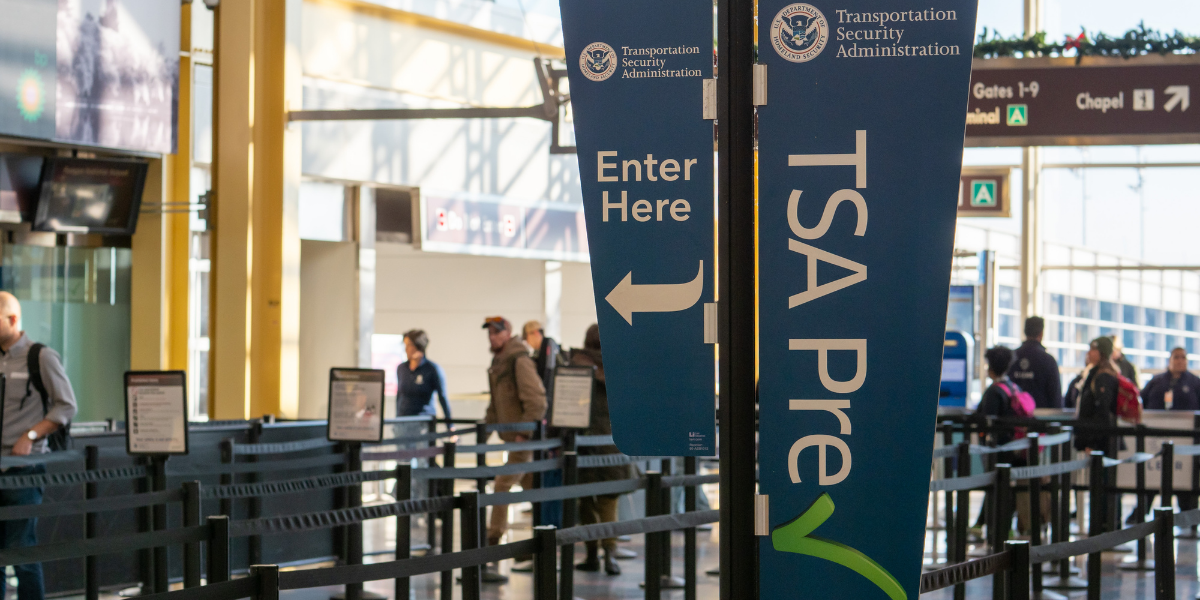
TSA PreCheck is an expedited screening program designed by the government for trusted domestic and international departures within the United States. When you link your membership to American Airlines, your time spent in security lines drops significantly.
During standard screening, passengers often face long delays, shoe removal, and container unpacking. With PreCheck, you enjoy several key perks:
✔ You keep your shoes, light outerwear, and belts on.
✔ You leave approved laptops inside your carry-on luggage.
✔ You keep your compliant liquids securely packed without pulling them out for separate inspection.
To ensure your carry-on luggage complies with standard regulations, make sure to review TSA carry-on rules and brush up on can you take a power bank on a plane before you head out. Enjoying these perks requires that your airline reservation links directly to a valid Known Traveler Number before departure.
What Is a Known Traveler Number (KTN)?
A Known Traveler Number, commonly known as a KTN, is a unique nine-digit alphanumeric code assigned to travelers who obtain membership in a trusted traveler program. It serves as the official digital link between your verified identity and the Department of Homeland Security database.
You receive a KTN if you enroll in:
- TSA PreCheck
- Global Entry
- NEXUS
- SENTRI
How to Add TSA PreCheck – Four Ways
Tap each method below to see the exact steps.
1. Before Booking Save It to Your Profile
The smartest way to ensure you never miss out on faster security lines is to add your number to your permanent Advantage profile. Once saved, American Airlines automatically applies your details to every future reservation you make while logged in.
1. Go to the official American Airlines website and log in to your account.
2. Click on your name in the upper navigation bar, open your account profile, and navigate to Information and Password.
3. Scroll down to the Secure Traveler section.
4. Locate the field labeled Known Traveler Number / KTN and enter your code accurately.
5. Click Save changes at the bottom of the page.
2. On an Existing Reservation
If you booked a flight before receiving your approval, or if you simply forgot to log in during purchase, do not worry. You can easily add your number to an active itinerary on the website.
1. Open the American Airlines homepage and select the Find Your Trip tab.
2. Enter your six-character confirmation code and the passenger last name.
3. Once your itinerary opens, navigate to the Passenger details or Passenger information section.
4. Click Edit passenger information or Add Secure Traveler details.
5. Enter your Known Traveler Number into the designated box and confirm that your name matches your trusted traveler registration exactly.
6. Click Save changes to update your ticket record.
3. Through the American Airlines App
1. Launch the American Airlines app on your mobile device.
2. Tap on your upcoming trip from the home screen, or select Find a reservation using your record locator and last name.
3. Tap on Passenger Details or Trip Settings.
4. Locate the Secure Flight and KTN input fields.
5. Type your Known Traveler Number carefully and save the update.
4. During Booking (No Account Needed)
1. Search for your desired flight routes and select your preferred travel times and fares.
2. Proceed to the Passenger Information page where you enter your full legal name, date of birth, and gender.
3. Look below the basic contact fields for an expandable section labeled Secure Traveler or Known Traveler Number.
4. Input your number into the KTN field.
5. Complete payment and confirm your purchase.
Why Is TSA PreCheck Not Showing on My Boarding Pass?
Many travelers add TSA PreCheck after booking their flight and realize their boarding pass still does not show the TSA PreCheck symbol. This frustrating situation generally stems from one of four reasons:
Name Discrepancies
Your name on the airline ticket must match your official enrollment records character for character. A missing middle name, an accidental typo, or a hyphenation error can break the match.
Typographical Errors in KTN
Entering even one wrong character or mixing up the number zero with the letter O will cause the system verification to fail silently.
Late Submission
If you add your number minutes before arrival or after checking in online, the updated status may not refresh on an already-generated digital boarding pass.
Random Security Exclusions
TSA explicitly notes that expedited screening is not 100 percent guaranteed on every single flight. Occasional random security checks occur for overall aviation safety. Familiarize yourself with airline security rules to prevent unexpected surprises at the checkpoint.
Can You Add TSA PreCheck After Checking In?
Yes, you can often add your information after checking in, but it requires an extra step. If you already checked in online and generated a standard boarding pass without the PreCheck indicator, simply typing your KTN into your profile will not automatically update your issued pass.
To fix this:
1. Try opening your trip on the website or app, update your passenger details, and attempt to re-issue or refresh your boarding pass.
2. If the digital pass does not update, visit an American Airlines customer service desk or curbside check-in counter at the airport.
3. Present your government identification and request the agent to add your KTN directly to the reservation system and reprint a fresh physical boarding pass.
Do keep in mind that airport ticket agents will do their best to assist, but technical cut-offs close to departure time mean it cannot always be guaranteed.
TSA PreCheck vs Global Entry: Which One Works With American Airlines?
| Program | Best For |
|---|---|
| TSA PreCheck | Faster US airport security |
| Global Entry | International travelers + TSA PreCheck benefits |
Both programs function seamlessly on American Airlines flights, but they cater to slightly different travel habits. Crucially, Global Entry approval automatically includes TSA PreCheck eligibility. If you have Global Entry, simply enter your nine-digit PASSID into the American Airlines Known Traveler Number field to receive expedited domestic screening benefits.
Common Mistakes When Adding TSA PreCheck
- Entering the wrong KTN. Double-check your numbers before submitting.
- Booking with a nickname instead of your legal passport or driver license name.
- Forgetting to click the final save or update button on the website.
- Assuming your membership connects automatically without linking it to the airline.
- Not checking baggage rules ahead of time. Reviewing American Airlines baggage policy and carry-on vs personal item allowances can still save you time at the checkpoint even with PreCheck.
Tips to Make Sure It Appears Before Your Flight
- Add your KTN well before the 24-hour check-in window opens.
- Confirm that your birth date, gender, and full name match your trusted traveler credentials.
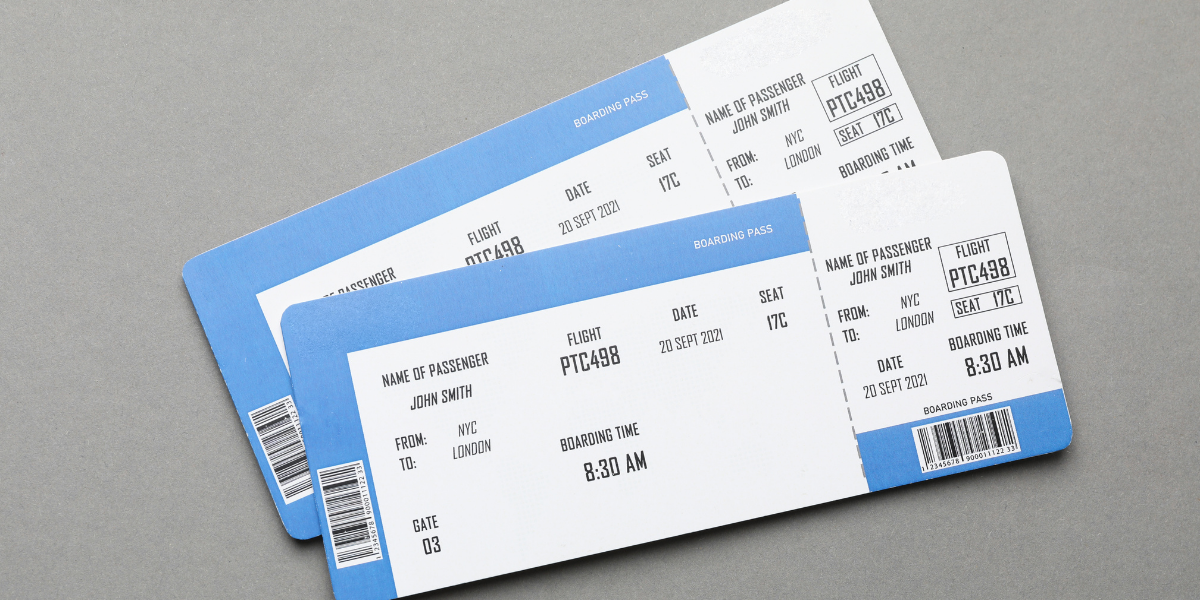
- Inspect your newly generated digital or paper boarding pass for the official TSA PRE text or logo before heading to the airport.
- Keep an eye on your membership expiration date so that your status remains active throughout your travels.
- Review airline baggage policies and our general guide on how to make airplane seats more comfortable to ensure an effortless journey.
Final Checklist
- Have your nine-digit KTN or Global Entry PASSID accessible.
- Save the number in your permanent AAdvantage profile for future trips.
- Update any current flight reservations using the Find Your Trip feature.
- Verify the TSA PreCheck indicator on your boarding pass before leaving home.
- Speak to an airport ticket counter agent if the indicator is missing.
Frequently Asked Questions
1. How do I add TSA PreCheck to American Airlines?
You can add your Known Traveler Number through your permanent AAdvantage account profile under Secure Traveler settings, or by opening your individual reservation under Find Your Trip and updating passenger details.
2. Can I add TSA PreCheck after booking an American Airlines flight?
Yes. Open your reservation on the website or mobile app using your confirmation code, navigate to passenger details, enter your KTN, and save the changes.
3. Where do I find my TSA PreCheck number?
You can find your Known Traveler Number by logging into your official trusted traveler program account on the Department of Homeland Security portal, or on the back of your Global Entry, NEXUS, or SENTRI card.
4. Why is TSA PreCheck not showing on my American Airlines boarding pass?
Common reasons include an inadvertent typo in your KTN, a mismatch between your ticket name and your enrollment name, or an unrefreshed boarding pass after a late update.
5. Can I use TSA PreCheck without it showing on my boarding pass?
No. Airport security officers will not allow you into the expedited line by showing an approval letter or membership card alone. The official TSA PreCheck designation must be printed directly on your active boarding pass.
Ready to Book Your Next Flight?
Breeze through security and compare fares for your next trip.
Compare Flights with TruAirfare →
Prefer to book by phone? Call TruAirfare 24/7 at (844) 744-6348
CALL US TOLL-FREE to get the best unpublished rate
Submit a request

Do I Need a Visa for a Layover? Transit Visa Rules Explained
Whether you need a visa for a layover depends on...
How to Add TSA PreCheck to American Airlines: Step-by-Step Guide
Getting approved for TSA PreCheck is a huge relief for...
Do You Need a REAL ID to Fly Domestically in 2026?
If you've booked a flight recently and someone mentioned "REAL...
Booking Two One-Way Tickets Instead of Round Trip: Is It Better?
When searching for flights, many travelers automatically choose a round-trip...

What Happens If You Miss Your Connecting Flight?
Missing a connecting flight can instantly turn an exciting journey...



About Us
Truairfare.com is an online search portal for flights tickets where you can find a variety of accommodations near you or at your preferred location.
Get in Touch
Disclaimer:- We are resellers of travel products and services, including hotels, flight deals, car rentals, vacation packages, and attractions. We are a travel company with an online portal partnered with travel consolidators and third-party travel providers. We are not directly or indirectly associated with any airline, hotel, resort, or accommodation. All prices quoted through us include all taxes and fees. The hotel search engine used is a third-party tool from Travelpayouts, which is simply used to provide information; we are not associated with any company, accommodation, or property available on it.
